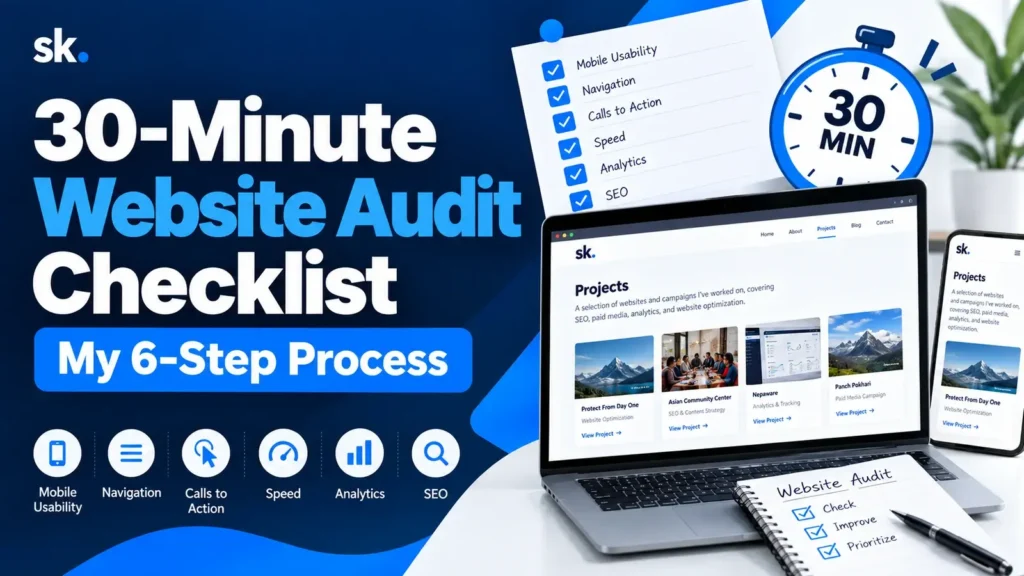
A website audit checklist can help you identify important problems without spending hours reviewing every technical detail. Sometimes, 30 focused minutes are enough to understand what needs attention first.
Whether you’re managing a WordPress website, building a personal portfolio, or maintaining a small business site, regular reviews can improve the experience for your visitors.
I prefer starting with one page instead of trying to audit an entire website at once.
In this guide, I’ll share my practical six-step process for reviewing mobile usability, navigation, calls to action, speed, analytics, and basic SEO. I’ll also use my own portfolio’s Projects page to show what I could verify and what still needs testing.
Step 1: Check Mobile Usability (5 Minutes)
Your website might look great on a laptop but feel completely different on a smartphone.
Open the page on your phone or use your browser’s mobile device preview.
Look for these common problems:
- Text that is difficult to read.
- Buttons that are too small or close together.
- Images extending beyond the screen.
- Navigation menus that are difficult to use.
- Sections that create unnecessary horizontal scrolling.
Try moving through the page as a first-time visitor.
Can you read everything comfortably? Can you open the menu and select a project without difficulty?
My checklist: Check readability, spacing, navigation, and button accessibility on a narrow screen.
Five minutes won’t replace complete accessibility testing, but it can reveal obvious usability problems.
Step 2: Review Navigation and Important Links (5 Minutes)
A good website should help visitors find information without unnecessary effort.
Start with the main navigation menu. Look at the labels and ask whether they clearly describe the destination.
Next, click the important links on your chosen page.
For a portfolio website, that might include project cards, case studies, your resume, and contact information.
I recommend checking three things:
- Does each link open the intended destination?
- Can visitors return to the previous section easily?
- Are important pages accessible through clear navigation?
My portfolio website guide explains why project organization matters when presenting professional work.
My checklist: Test the main menu and at least three important links.
Step 3: Evaluate Calls to Action (5 Minutes)
Every important page should give visitors a useful next step.
A call to action, or CTA, might encourage someone to explore a project, download a resource, read another article, or contact you.
The wording should explain what happens when visitors click.
For example, “Explore the Case Study” provides more context than a generic “Click Here.”
During this step, I ask:
- Is the main action easy to identify?
- Does the button describe its destination?
- Is there a clear next step after reading the page?
You don’t need buttons everywhere. A few relevant CTAs are usually more useful than several competing actions.
My checklist: Identify the primary CTA and verify its destination.
Step 4: Test Website Speed (5 Minutes)
A slow website can frustrate visitors before they have a chance to explore your content.
For a quick performance review, I recommend Subash Kafle Free Website Check Tool
Enter the page URL and review both mobile and desktop results.
Pay attention to:
- Largest Contentful Paint (LCP), which measures when the main content becomes visible.
- Interaction to Next Paint (INP), which reflects responsiveness.
- Cumulative Layout Shift (CLS), which measures unexpected visual movement.
You don’t need to understand every technical recommendation immediately.
Start by looking for large images, unnecessary scripts, or other issues highlighted in the report.
Remember that a single test is not a complete picture of real visitor performance.
My checklist: Run the test and record the most important improvement opportunity.
Step 5: Verify Analytics Tracking (5 Minutes)
A website can look perfectly functional while its analytics setup is incomplete.
If you use Google Analytics 4, open Reports → Realtime and visit your website in another browser tab.
Check whether your activity appears, accounting for consent settings, processing delays, and any filters that might exclude your visit.
Next, review whether important interactions are being measured.
Depending on your website, these might include:
- Contact form submissions.
- Important button clicks.
- Resource downloads.
- External project link clicks.
Don’t assume every interaction is automatically tracked.
You can learn more in my guide to tracking website traffic with GA4.
My checklist: Confirm page tracking and identify one important action to measure.
Step 6: Review Basic SEO and Search Visibility (5 Minutes)
The final step focuses on whether search engines can understand and discover your page.
Start with the page title, main heading, and URL.
Ask whether they clearly describe the content.
Next, review internal links and check whether images have meaningful alternative text where appropriate.
If you have access to Google Search Console, use its URL Inspection tool to review the page’s indexing status.
Google’s SEO Starter Guide provides additional guidance on descriptive content, navigation, and search visibility.
For a more detailed review, see my SEO checklist for a new website.
My checklist: Review the title, heading, internal links, and indexing status.
A Practical Example: Reviewing My Projects Page
I used the Projects page on SubashKafle.com to demonstrate this process.
Here’s what I could verify from its publicly accessible content and links.
What worked:
- The page presents four main areas of work: SEO, paid media, analytics, and website optimization.
- Each featured project card links to an individual case study.
- The Protect From Day One section links to the live website and explains my contribution.
- The “Get in touch” CTA leads to my contact page.
What I would improve or investigate:
- Consider a more prominent project-related CTA near the introduction.
- Test the full mobile layout and interactive navigation on actual devices.
- Run PageSpeed Insights to identify any performance issues.
- Confirm GA4 tracking and indexing status using account-level tools.
These are observations and follow-up checks, not a claim that every part of the website passed a technical audit. I haven’t assigned performance scores or reported analytics results without supporting data.
The exercise also reminded me that a useful audit doesn’t always end with a long list of problems. Sometimes, it confirms what is working and helps prioritize what to examine next.
Final Thoughts: Small Website Improvements Add Up
A useful website audit checklist doesn’t need to be complicated.
Start with one important page. Spend five minutes reviewing each of the six areas, and record what works, what needs attention, and what you couldn’t verify.
Then choose one or two improvements you can realistically address.
For me, the purpose of a website audit is not simply to collect scores. It’s to make the website clearer, more useful, and easier to navigate.
Try this 30-minute website audit checklist on one page of your website today. Keep your findings simple, make one meaningful improvement, and use what you learn during your next review.
Explore My Website Projects
Keep the conversation going.
Have a question or another perspective? Leave a thoughtful comment. Comments may be reviewed before appearing publicly.