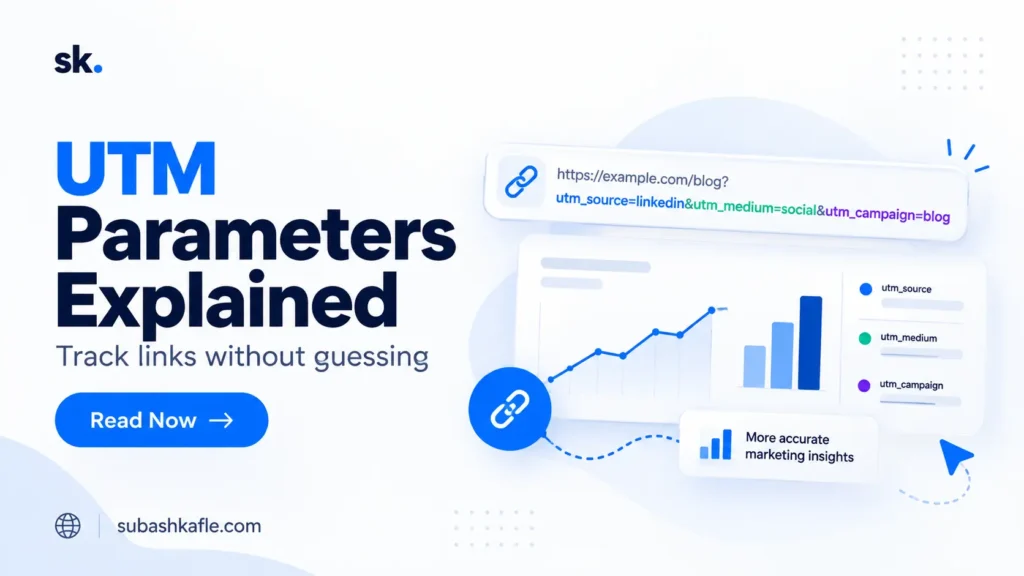
UTM parameters help you track where your website traffic comes from and which marketing campaigns are actually driving visits. If you share the same page on LinkedIn, in an email newsletter, and across other channels, UTM parameters make it easier to see which source, medium, and campaign brought people to your site in Google Analytics 4 (GA4).
If you have ever shared the same link in multiple places, you already know how hard it can be to tell which post or campaign performed best. Without proper tracking, your traffic data can feel incomplete or confusing. In this guide, I’ll explain what UTM parameters are, how they work, how to create tracking links, and where to find the results in GA4. I’ll also share a simple naming convention you can reuse for future campaigns.
But here’s the question: How do you know which campaign actually brought visitors to your website?
You might see traffic from social media, email, and other sources. However, identifying the exact post, newsletter, or campaign can be difficult without consistent tracking.
That’s where UTM parameters become useful.
UTM parameters help you identify where your website traffic comes from and which marketing efforts are driving visits.
In this guide, I’ll explain what UTM parameters are, how they work, how to create tracking links, and where to find the results in GA4. I’ll also share a simple naming convention you can reuse for your campaigns.
What Are UTM Parameters?
UTM stands for Urchin Tracking Module. UTM parameters are short pieces of information added to the end of a website URL to identify the source of a visit.
For example, a regular website link might look like this:
https://example.com/guide/
Now imagine sharing that page through LinkedIn.
With UTM tracking, your link could look like this:
https://example.com/guide/?utm_source=linkedin&utm_medium=social&utm_campaign=guide_launch
The destination is the same. The difference is the tracking information added to the URL.
When someone clicks the tagged link, Google Analytics can use those values to identify the marketing source, medium, and campaign associated with the visit.
UTM parameters don’t collect analytics data by themselves. Your website still needs a properly configured analytics system, such as GA4, to collect and report that information.
The Five UTM Parameters You Should Understand
Google Analytics supports several campaign parameters, but these five cover most common tracking needs.
| Parameter | What It Identifies | Example |
|---|---|---|
utm_source |
Where the traffic originates | linkedin |
utm_medium |
The marketing channel | social |
utm_campaign |
The campaign or promotion | guide_launch |
utm_content |
A particular link or creative | feed_post |
utm_term |
A paid-search keyword | analytics_tools |
1. utm_source: Where did the visitor come from?
This identifies the specific traffic source.
Examples include linkedin, facebook, newsletter, and google.
2. utm_medium: How did the visitor arrive?
This describes the marketing channel.
Examples include email, social, cpc, and referral.
For an unpaid LinkedIn post, you might use utm_source=linkedin and utm_medium=social.
3. utm_campaign: Which marketing effort generated the visit?
This identifies the campaign being promoted.
For example, utm_campaign=guide_launch.
If you promote the same guide through LinkedIn and email, use the same campaign name across both links. This makes it easier to review the campaign as one initiative.
4. utm_content: Which link or creative was clicked?
This optional parameter is useful when testing multiple links or content variations.
For example, utm_content=header_button and utm_content=footer_link could distinguish two links in the same newsletter.
5. utm_term: Which paid keyword was used?
This optional parameter is mainly used for paid-search keyword tracking.
For most beginner campaigns, I recommend starting with source, medium, and campaign, then adding the other parameters when they serve a clear purpose.
Google also recommends using these three core parameters consistently in its official UTM parameter documentation.
How to Create UTM Parameters Step by Step
You don’t need coding experience to create UTM tracking links.
Here’s a simple process.
Step 1: Choose your destination URL
Start with the website page you want visitors to open.
For this example, I’ll use:
https://example.com/guide/
Replace this with your own website URL when creating a real campaign.
Step 2: Identify your traffic source
Decide where you will share the link.
For a LinkedIn post:
utm_source=linkedin
Step 3: Choose the marketing medium
Since this example uses an unpaid social media post:
utm_medium=social
Step 4: Name your campaign
Choose a campaign name that explains what you’re promoting.
For example:
utm_campaign=guide_launch
Avoid vague names like test1 or campaign2.
Step 5: Combine the parameters
Your complete tracking link becomes:
https://example.com/guide/?utm_source=linkedin&utm_medium=social&utm_campaign=guide_launch
Notice how the URL is structured.
A question mark (?) begins the query string, an equals sign (=) connects each parameter with its value, and an ampersand (&) separates the parameters.
If your destination URL already contains a query string, append additional parameters with & rather than adding another ?.
You can also use the free Google Analytics Campaign URL Builder instead of creating links manually.
UTM Tracking Examples for LinkedIn and Email Newsletters
Let’s imagine you’re promoting a new analytics tutorial through two channels.
Example 1: LinkedIn post
Tracking values:
- Source:
linkedin - Medium:
social - Campaign:
analytics_guide_launch - Content:
feed_post
Complete URL:
https://example.com/guide/?utm_source=linkedin&utm_medium=social&utm_campaign=analytics_guide_launch&utm_content=feed_post
This helps identify visits attributed to your LinkedIn post.
Example 2: Email newsletter
Tracking values:
- Source:
newsletter - Medium:
email - Campaign:
analytics_guide_launch - Content:
main_button
Complete URL:
https://example.com/guide/?utm_source=newsletter&utm_medium=email&utm_campaign=analytics_guide_launch&utm_content=main_button
Both links share the same campaign name because they promote the same initiative.
The source and medium values distinguish the channels, while the content values help identify the individual links.
This structure makes comparing campaign traffic much easier.
My Recommended UTM Naming Convention
One of the most important habits in campaign tracking is consistency.
Google Analytics treats parameter values as case-sensitive. For example, LinkedIn and linkedin can appear as separate values.
I recommend using a simple standard:
| Field | Naming Rule | Example |
|---|---|---|
| Source | Lowercase platform name | linkedin |
| Medium | Consistent channel name | social |
| Campaign | Descriptive campaign name | analytics_guide_launch |
| Content | Specific placement or creative | feed_post |
My reusable UTM template:
https://example.com/page/?utm_source=SOURCE&utm_medium=MEDIUM&utm_campaign=CAMPAIGN&utm_content=CONTENT
Replace the uppercase placeholders with your actual lowercase values.
I also recommend keeping a shared tracking spreadsheet with the destination URL, source, medium, campaign name, content variation, and final tagged link.
That way, you don’t need to remember which naming format you used last month.
Google Sheets is one of the tools I recommend in my article on free digital marketing tools for beginners.
Where to Find UTM Campaign Traffic in Google Analytics 4
Creating UTM tracking links is only the first step. You also need to know where to review their performance.
Once your website is collecting GA4 data:
- Open Google Analytics.
- Select your GA4 property.
- Navigate to Reports → Acquisition → Traffic acquisition.
- Open the dimension dropdown above the report table.
- Select Session source / medium or Session campaign, depending on what you want to analyze.
- Search or filter for the relevant traffic source or campaign.
For example, when reviewing our sample LinkedIn campaign, you would look for source/medium values such as linkedin / social.
Switching to Session campaign lets you examine visits associated with analytics_guide_launch.
You can then review metrics such as sessions, engagement, and key events to understand what happened after visitors arrived.
Keep in mind that GA4 reporting can take 24–48 hours to process fully, and your website must be collecting data correctly.
Google explains these reporting options in its Traffic acquisition documentation.
If you’re still learning GA4, I’ve also written a practical guide on how to track website traffic in GA4 using five essential reports.
Common UTM Tracking Mistakes to Avoid
Even a properly formatted link can create reporting problems if your tracking strategy isn’t consistent.
Here are five mistakes worth avoiding.
1. Mixing uppercase and lowercase values
Using LinkedIn, linkedin, and LINKEDIN across different campaigns can split your reporting data.
Choose one format and follow it.
2. Using different campaign names for the same initiative
If LinkedIn uses guide_launch while your newsletter uses analytics_launch, comparing the full campaign becomes harder.
3. Tagging internal website links
UTM parameters are designed to identify incoming marketing traffic.
Avoid adding them to ordinary navigation links between pages on your own website because they can interfere with campaign attribution.
4. Forgetting to test tracking links
Before sharing a campaign link, open it and confirm the destination loads correctly.
Check that redirects preserve the UTM parameters. After testing, verify that your analytics system receives the visit.
5. Assuming UTMs measure conversions automatically
UTMs identify campaign information. They don’t automatically track form submissions, purchases, or registrations.
Those actions need appropriate event and key-event tracking in GA4.
For Google Ads, also check whether auto-tagging already handles your campaign attribution before adding manual tags.
Do UTM Parameters Help With SEO?
UTM parameters are measurement tools, not a direct way to improve search rankings.
They help explain which marketing links bring visitors to your website. They don’t make a page rank higher simply because the URL includes campaign tracking information.
For organic search performance, Google Search Console is a more suitable tool for reviewing search queries, impressions, and clicks.
If you haven’t configured it, my Google Search Console setup guide explains the process.
I prefer using GA4 and Search Console together because they help answer different questions about website discovery and visitor behavior.
Start Tracking Your Campaigns With More Confidence
UTM parameters might look technical at first, but the basic idea is simple.
Add consistent campaign information to the links you share, then review that information in Google Analytics.
Start with three parameters: source, medium, and campaign.
Once you’re comfortable, use content values to compare different posts, email buttons, or creative variations.
You don’t need a complicated tracking system to get started. You need clear naming rules, working links, and a habit of reviewing the results.
Try creating two tracking links for your next campaign: one for LinkedIn and one for your newsletter. Use the same campaign name and compare their performance in GA4.
The goal isn’t just to count more clicks. It’s to understand which marketing efforts are helping people find and engage with your content.
Free UTM Tracking Template (CSV)
Want to put this into practice? I’ve created a free, reusable UTM tracking template to help you organize campaign links and maintain consistent naming conventions.
The GitHub resource includes a downloadable CSV template, sample tracking links for LinkedIn, email newsletters, Pinterest, and other channels, and simple UTM naming guidelines.
Download My Free UTM Tracking Template on GitHub →
You can open the CSV in Google Sheets or Excel and customize it for your own marketing campaigns.
Copy My UTM Naming Template
Keep the conversation going.
Have a question or another perspective? Leave a thoughtful comment. Comments may be reviewed before appearing publicly.